Screens from Sightwell 2.0.4 for Mac. Alder Cove Energy and Harbour Point are made-up companies.
Before you start
You need a Mac with macOS 12 Monterey or later, with an Apple silicon or Intel processor, and two things from your organisation's IT team:
- Your server address. It is usually
sightwell.followed by your organisation's domain, for examplesightwell.your-company.com. - Your work account. You sign in with the account your organisation already uses, for example Microsoft Entra ID. Your organisation's multi-factor and device rules apply.
Sightwell doesn't route your general internet traffic. It only carries traffic to the systems your organisation makes available to you.
For an iPhone or iPad, see Get started.
Install
- Download the latest
Sightwell-version.pkgfrom Sightwell releases on GitHub. - Open the file and follow the installer. macOS asks for an administrator's password.
- When the installer finishes, Sightwell opens.
The installer puts two things on the Mac: the Sightwell app, in the Applications folder, and the Sightwell service, a background program that holds the connection. The app's window and the glass in the menu bar are how you control it. macOS may tell you that Sightwell added an item that runs in the background: that is the service.
Connect the first time
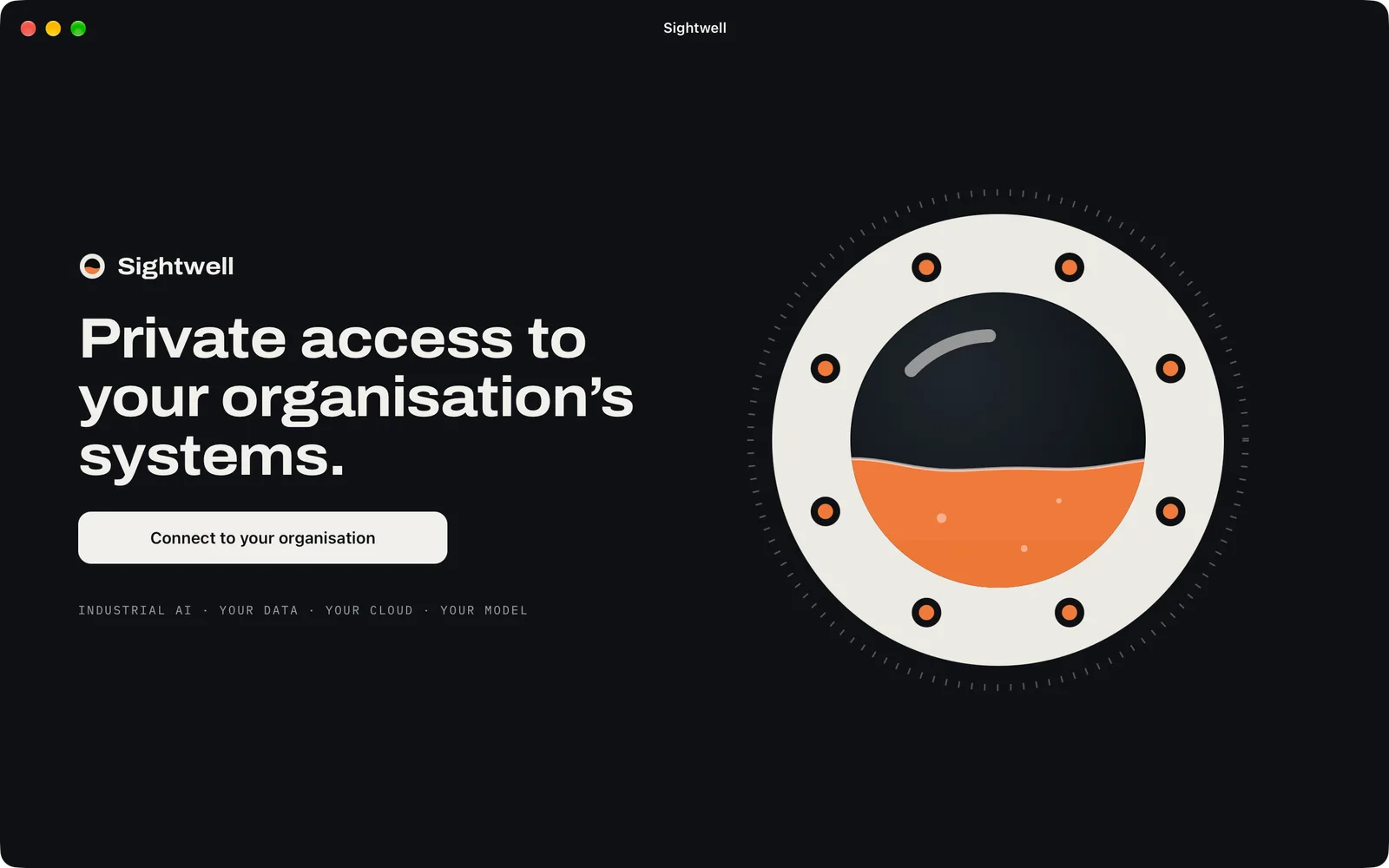
- Click Connect to your organisation.
- Under Server address, type the address your IT team gave you, for example
sightwell.your-company.com. You don't need to typehttps://. - Click Continue and sign in. Sightwell keeps the address and starts the sign-in.
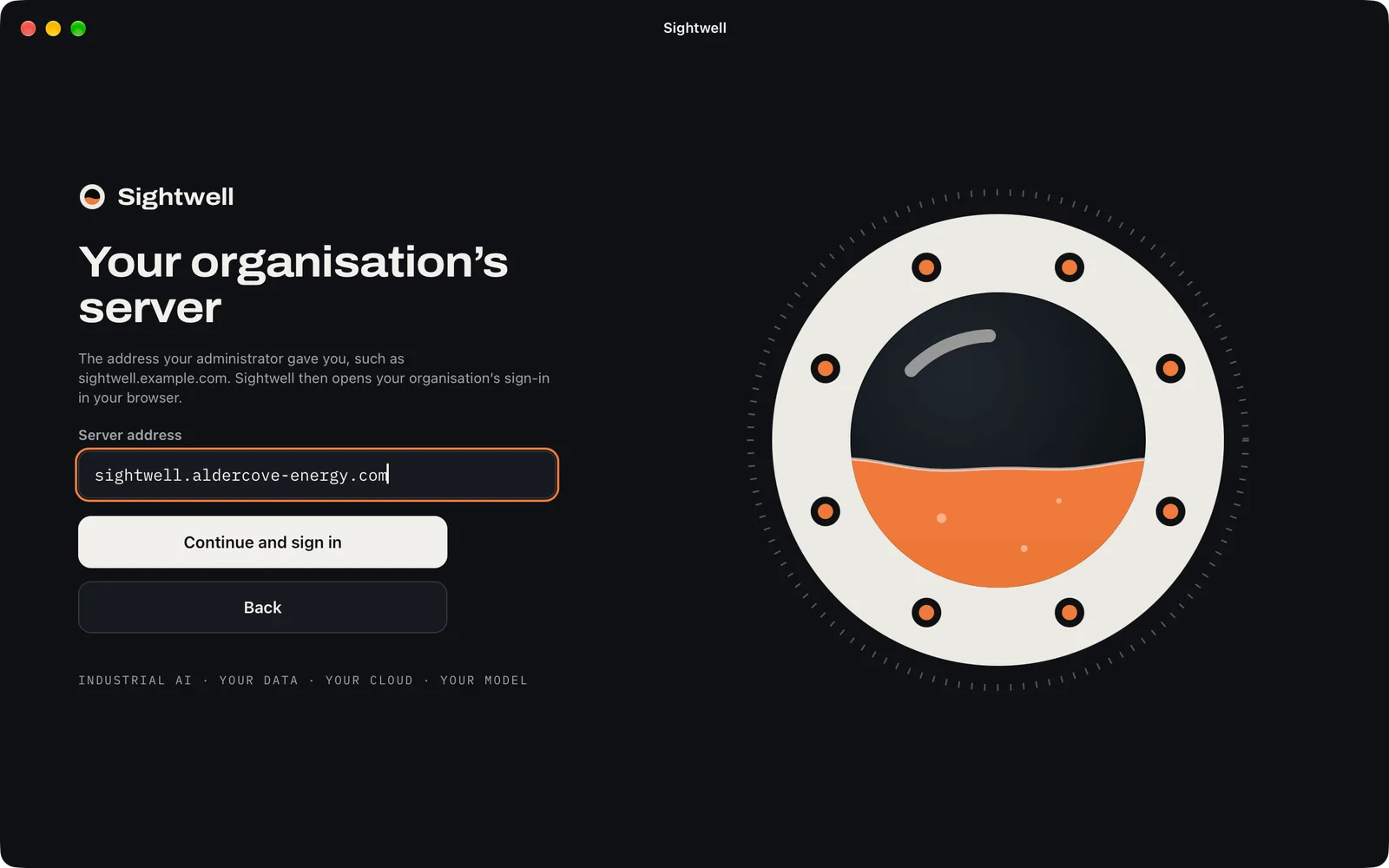
If the app answers That is not a server address. It looks like sightwell.example.com., compare what you typed with the address you were given: it is a name, without a path after it.
If your organisation sent you a link that adds it to Sightwell, open the link instead of typing the address. See A link from your organisation.
Sign in
You sign in with your work account, on your organisation's own sign-in page.
In your browser
- Your browser opens your organisation's sign-in page. In Sightwell the status reads Connecting… and, under it, Signing in through your browser.
- Sign in in the browser.
- Go back to Sightwell. It connects by itself, and the status changes to Connected.

If you take too long, the app reads The sign-in was not finished in time. Click the glass to try again.
With Microsoft, inside Sightwell
If your organisation signs in with Microsoft Entra ID and has set this up, Microsoft's sign-in opens inside Sightwell's window instead of the browser, and the status reads Signing in with Microsoft. This needs Sightwell 2.0.4 or later.
- On a Mac your organisation manages, Microsoft may sign you in without showing a page.
- The next time you connect, Sightwell first tries to sign in without a window. If Microsoft asks again, sign in again.
- If it doesn't work, the Connection page reads Signing in with Microsoft did not work. Sign in through the browser instead, or copy the sign-in link. Choose Sign in with the browser or Copy sign-in link.
How a profile signs in
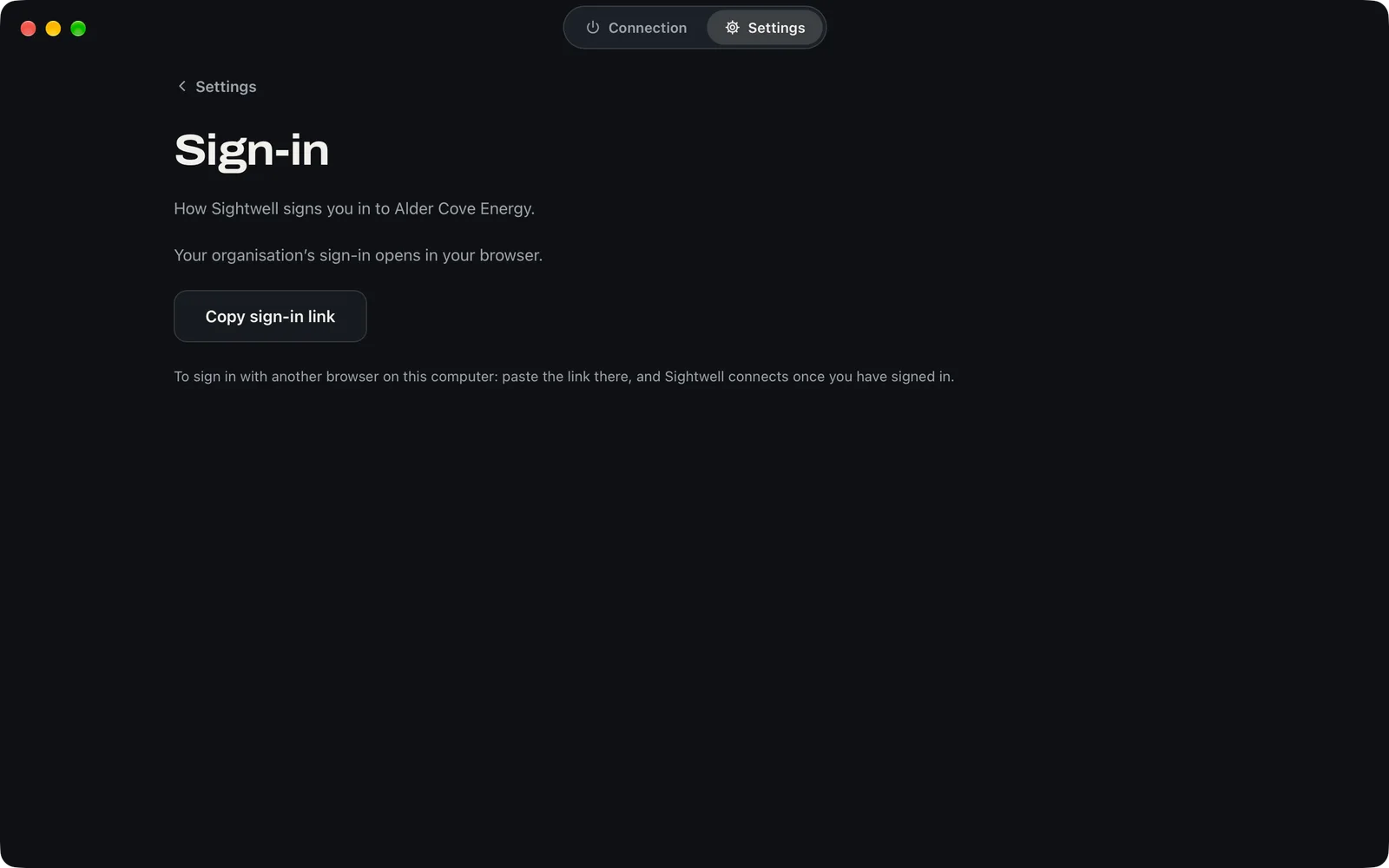
Settings › Sign-in says how Sightwell signs you in to the organisation in use.
- If your organisation offers Microsoft sign-in, choose between Microsoft, in Sightwell and Browser. Sightwell keeps the choice for that organisation.
- Copy sign-in link starts the sign-in without opening a browser and copies its address. Paste it into the browser you want to use, on this Mac: Sightwell connects once you have signed in there. The link doesn't work on another computer.
The glass
The Connection page says where you stand on the left and has the glass on the right. The glass is the switch: click it, or press Space. While Sightwell connects, Esc cancels.

| The app reads | What it means |
|---|---|
| Disconnected | This computer is not connected to your organisation. Click the glass to connect. |
| Connecting… | Setting up the connection, or a sign-in you haven't finished yet. Esc cancels. |
| Connected | This Mac is connected to your organisation. If your organisation signs devices out after a set time, the line Session ends in … says how long is left. |
| Sign-in needed | Sign in to connect. Click the glass to sign in. |
| Session expired | Sign in again to connect. Your organisation signed this computer out after its set time. |
| Sign-in failed | The sign-in was refused. Try again. See Troubleshooting. |
| Service not running | The app can't reach the Sightwell service on this Mac. See Troubleshooting. |
The glass is empty when Sightwell is off, rises while it connects, and is full when it is connected. While it connects, a light runs round the eight bolts. Once it is connected, the lit bolts go out one by one as the session runs down.


The menu bar
Sightwell's glass is also in the menu bar, at the top right of the screen. It is in colour while you are connected, and it rises while Sightwell connects. Click it for the menu:
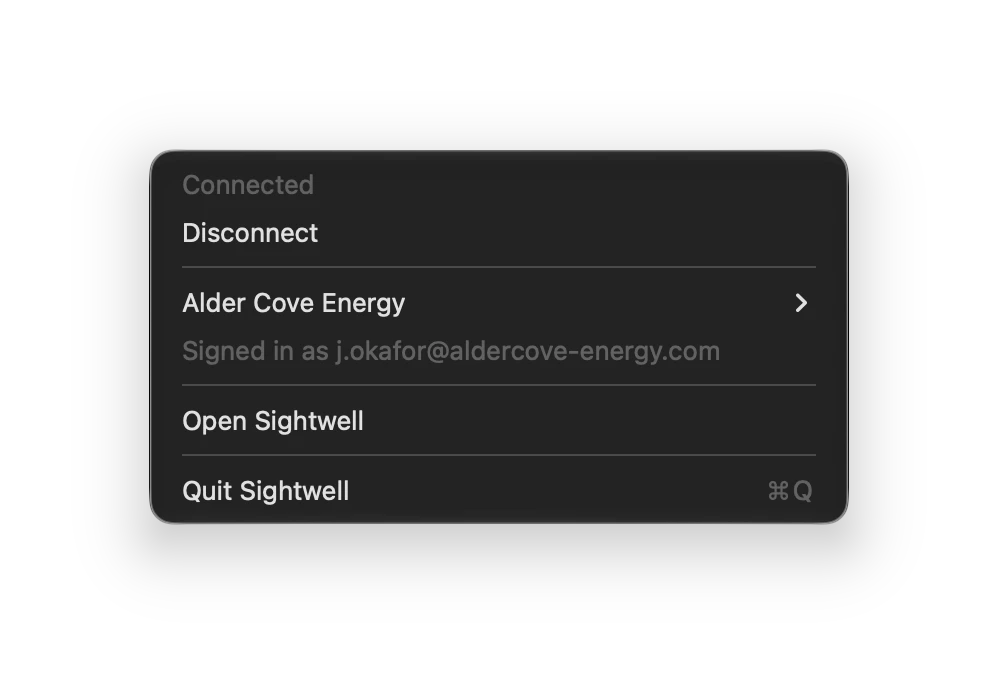
- The state, on the first line: Connected, Connecting…, Not connected, Sign-in needed or Service not running.
- One action for that state: Connect, Sign in…, Disconnect or Cancel.
- Your profile. Its submenu lists your organisations, to switch, and Manage profiles…. Under it, Signed in as names your account.
- Open Sightwell shows the window again.
- Quit Sightwell disconnects and closes the app.
Closing the window doesn't disconnect: Sightwell stays connected in the menu bar and leaves the Dock. Two settings under Settings › This computer change that:
- Keep in the menu bar. With it off, closing the window disconnects and quits.
- Open Sightwell at login. Sightwell opens when you log in to the Mac. It is off until you turn it on.
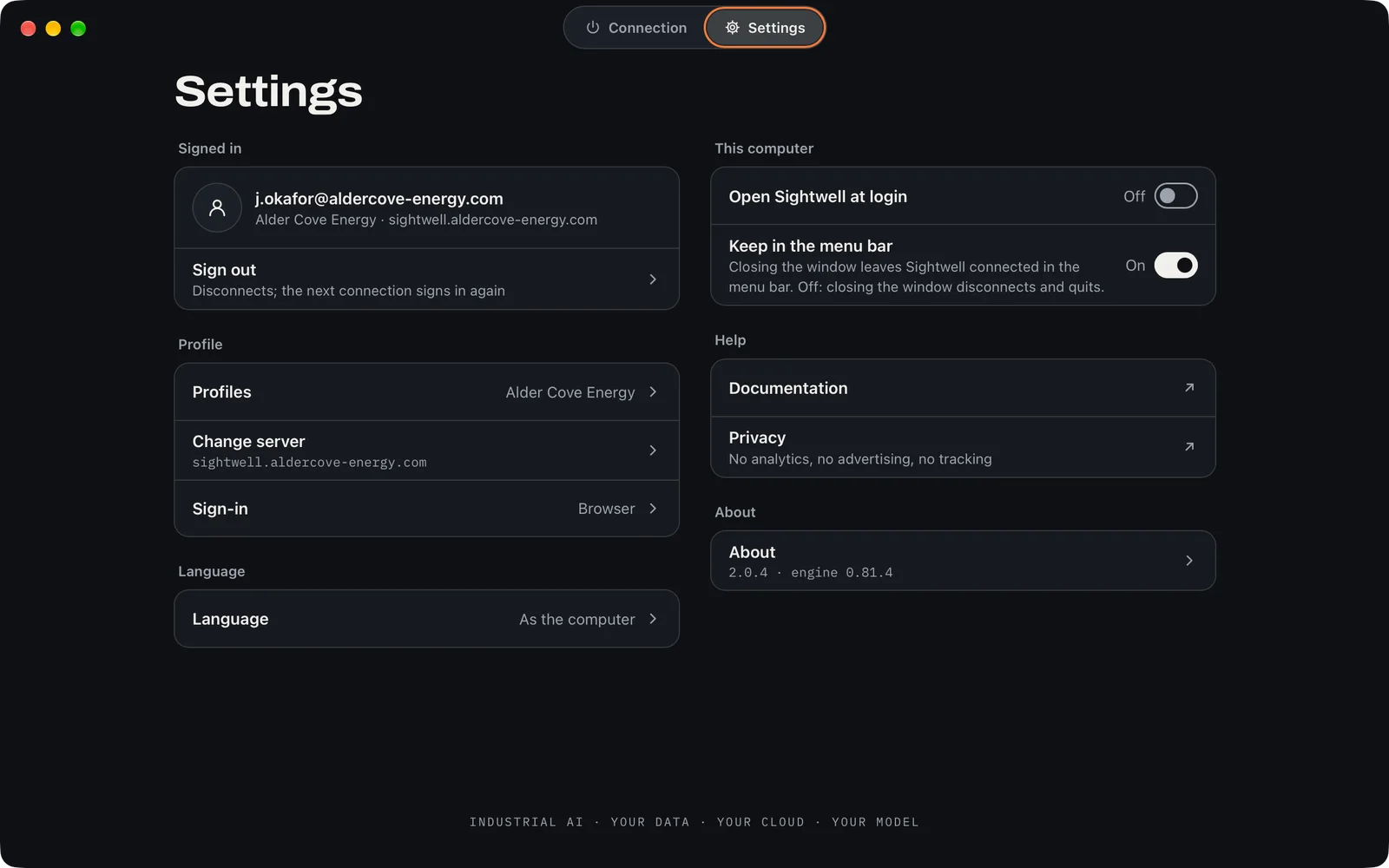
A row that reads Set by your organisation was set for this Mac by your IT team and can't be changed in the app.
Several organisations
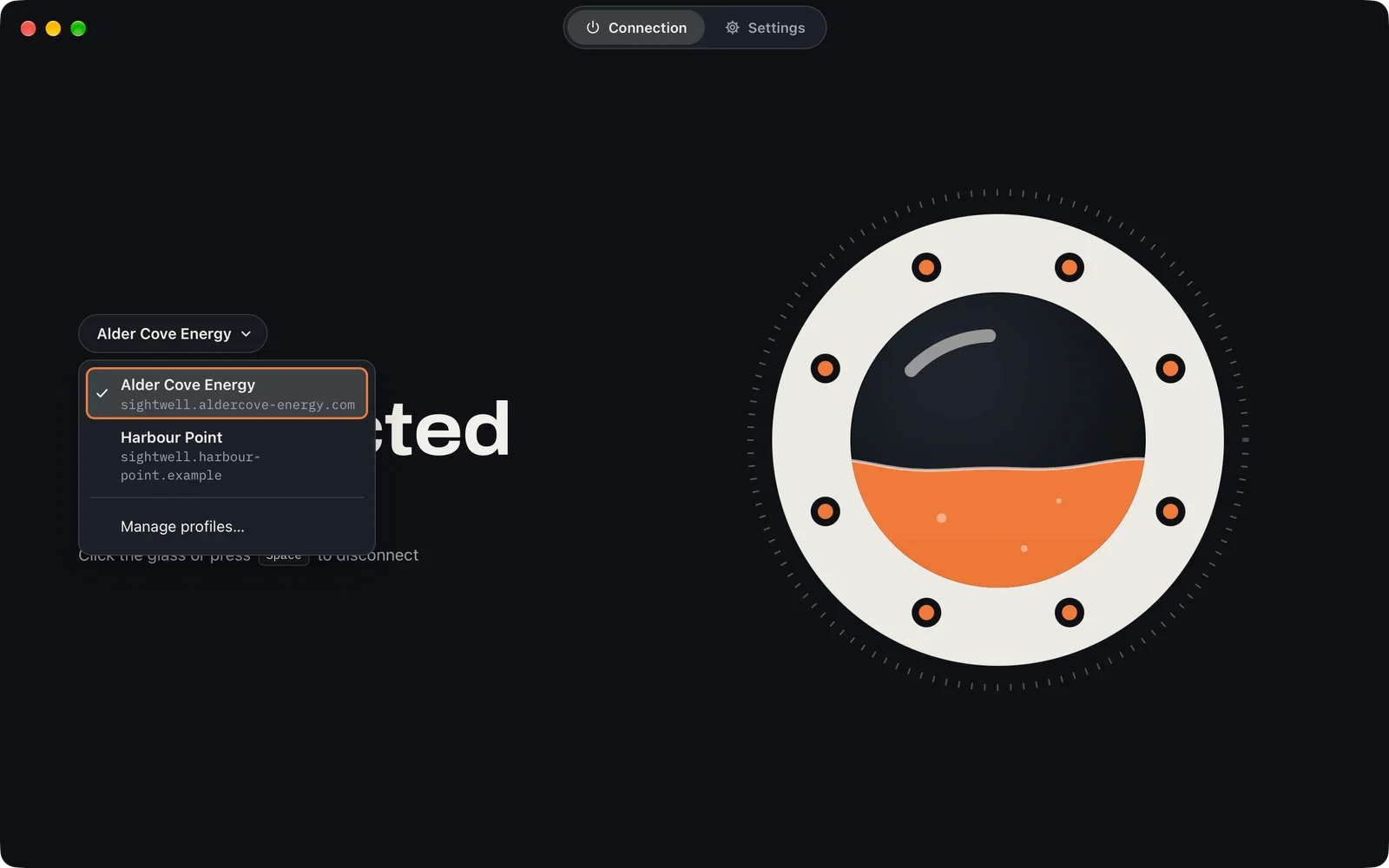
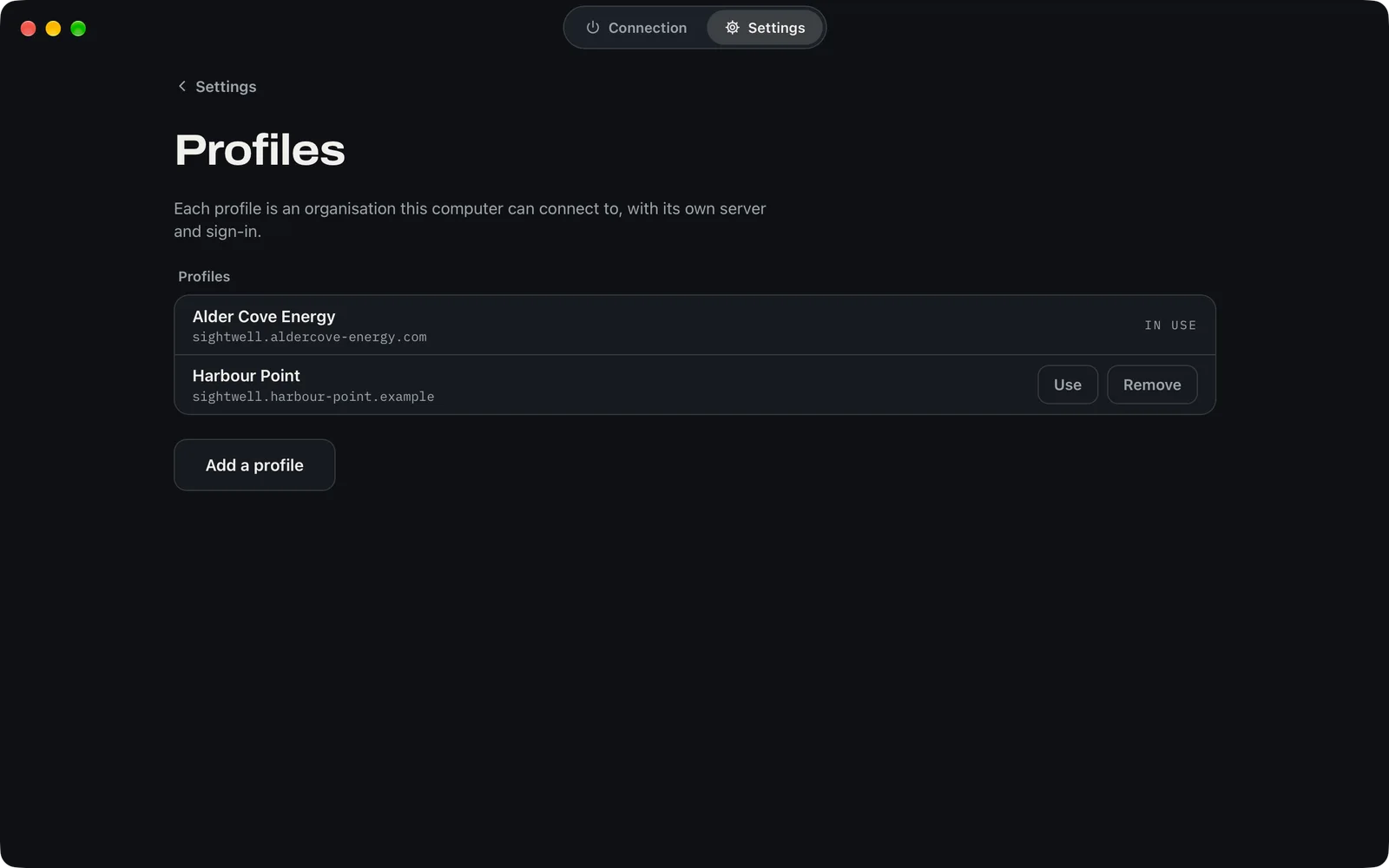
Each profile is an organisation this Mac can connect to, with its own server and sign-in. One is in use at a time: switching disconnects first, and you connect again to the other.
- Switch: click the profile's name above the status on the Connection page and choose another, or use the profile's submenu in the menu bar.
- Manage: Manage profiles… in either menu, or Settings › Profiles. Use switches to a profile; Remove takes it off this Mac. The profile in use, and the Mac's first profile, can't be removed.
- Add: click Add a profile, type the organisation's Server address and, if you like, a Name, then click Add and use. Without a name, the profile is named after its server.
A link from your organisation
Your organisation can send you a link that adds it to Sightwell, and its Sightwell dashboard has the button Open in Sightwell app, which does the same. Open the link on the Mac where Sightwell is installed. Sightwell asks Add organisation? and shows the server. Click Add and sign in, or Not now to leave things as they are.

If Sightwell answers This link cannot be used, it says why. Ask whoever sent the link for a new one, or type the server address yourself.
Change server
If your organisation's server address changes, open Settings › Change server, type the new Server address and click Save and disconnect. Sightwell disconnects from the current server, and the next connection signs in at the new one.
Language
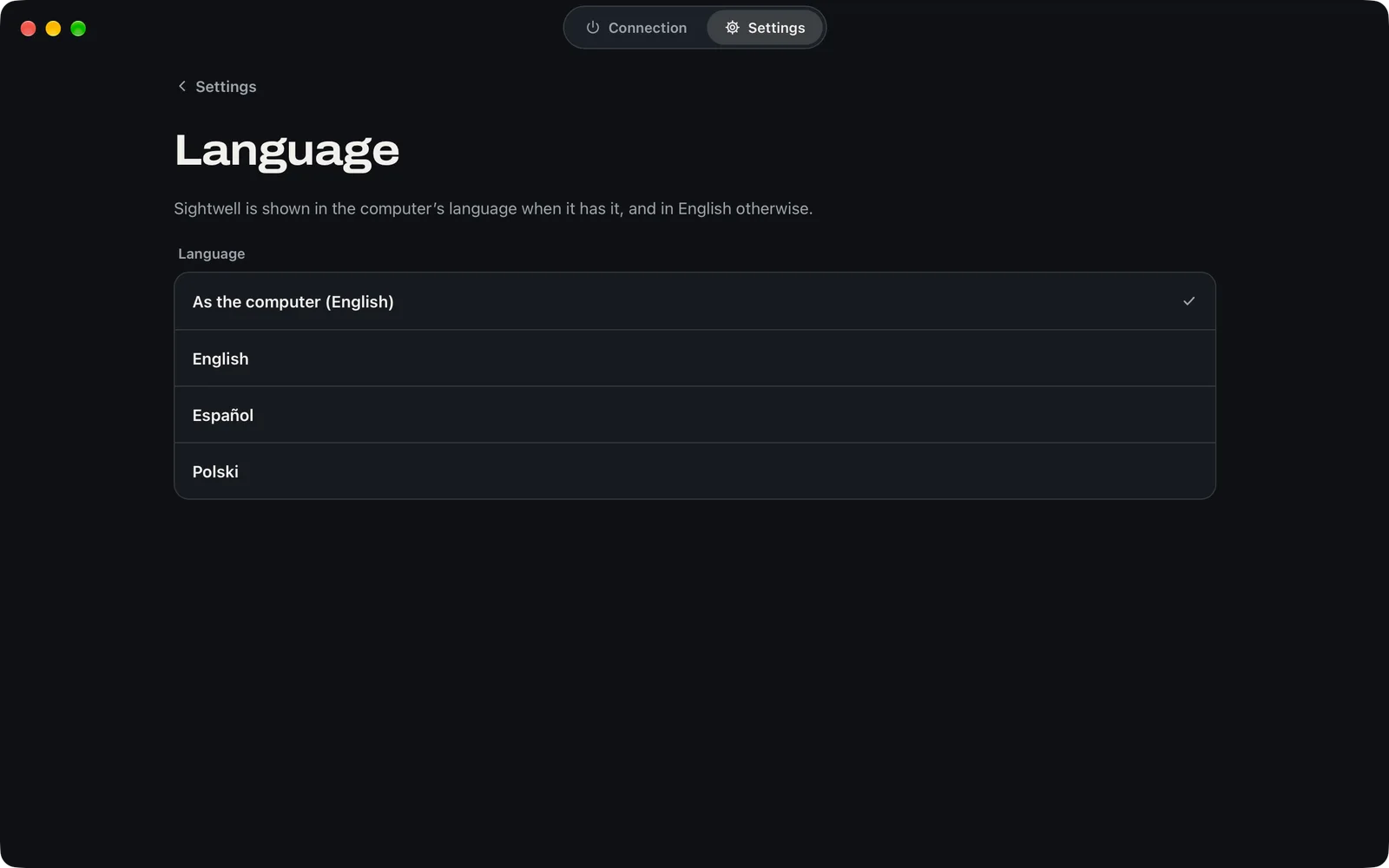
Sightwell for Mac is in English, Spanish and Polish. It follows the Mac's language when it has it, and is in English otherwise. To choose one yourself, open Settings › Language; As the computer goes back to following the Mac.

Updates
Settings › About shows the versions of the app, the engine and the service, and looks for a newer version each time you open it. Check now looks again.
- When there is a newer version, an orange dot appears on the Settings tab, the About row reads Sightwell version is available, and the menu bar menu says the same.
- Open Settings › About and click Install now. Sightwell downloads the update, closes and opens again.
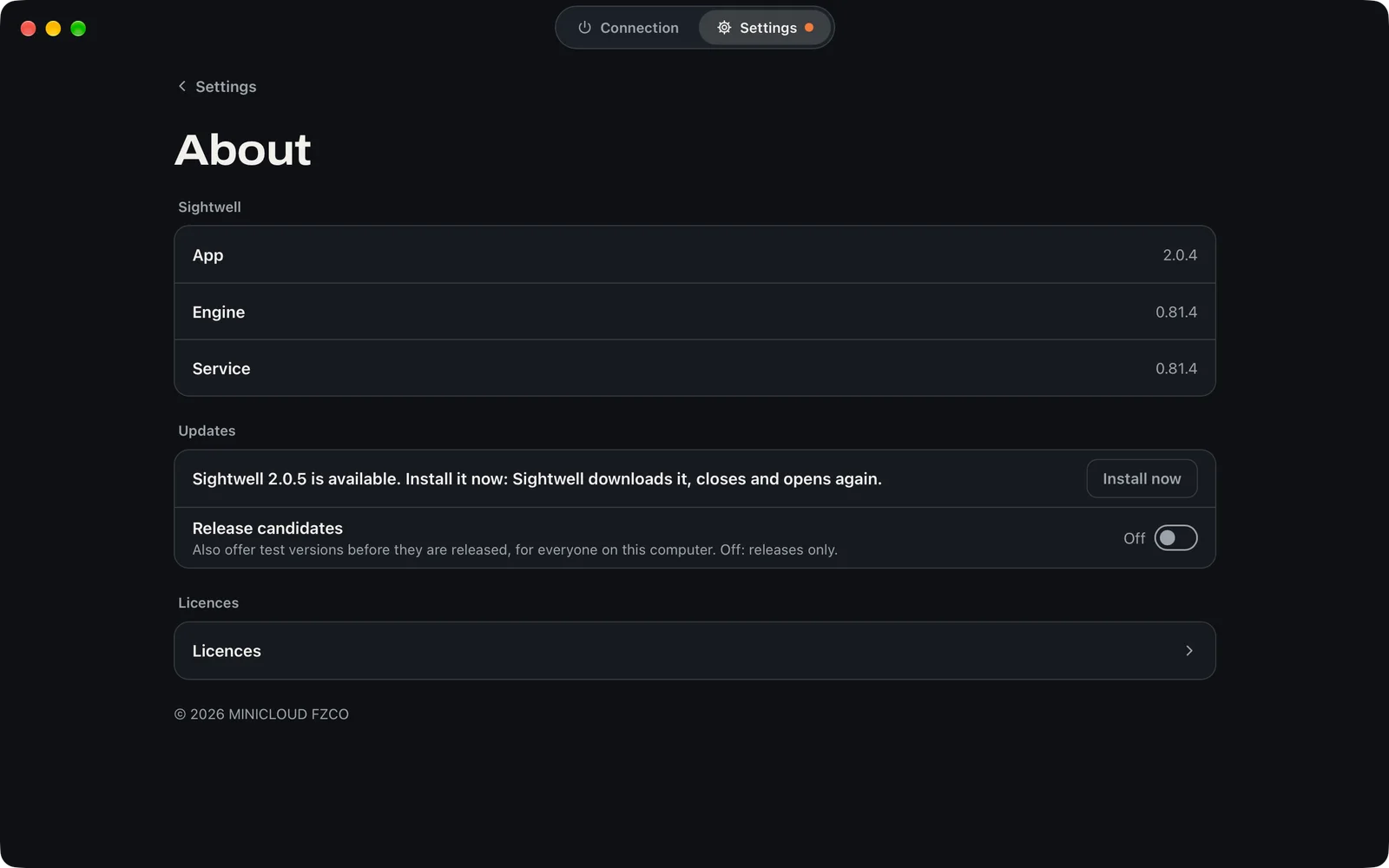
If the app reads Sightwell could not install the update itself. Download it, then open the downloaded file to install it., click Download and install the package as you did the first time.
Release candidates also offers test versions before they are released, for everyone on this Mac. Leave it off unless your IT team or Sightwell asks you to turn it on.
Sign out, quit, uninstall
- Disconnect: click the glass, or choose Disconnect in the menu bar. You stay signed in.
- Sign out: Settings › Sign out. Sightwell disconnects, and the next connection signs in again.
- Quit: Quit Sightwell in the menu bar menu. That disconnects.
- Uninstall: open Terminal and run the command below, with an administrator's password. It stops the service and removes the app, the
sightwellcommand and the service's files. Moving the app to the Bin instead would leave the service on the Mac.
sudo /Applications/Sightwell.app/Contents/Resources/uninstall.shYour own settings stay in ~/Library/Application Support/sightwell, in your home folder. Delete that folder too if you want nothing left.
More help
- Troubleshooting on a Mac: the service, the server, sign-in, and sharing logs.
- Support: who to contact, and what to include.
- Privacy policy: what the app sends, and to whom.
- Spaces and the demo are in the iPhone and iPad app. On a Mac, open a space's invitation link in your browser while Sightwell is connected. See Spaces shared with you.
- For administrators: Microsoft sign-in inside the apps.